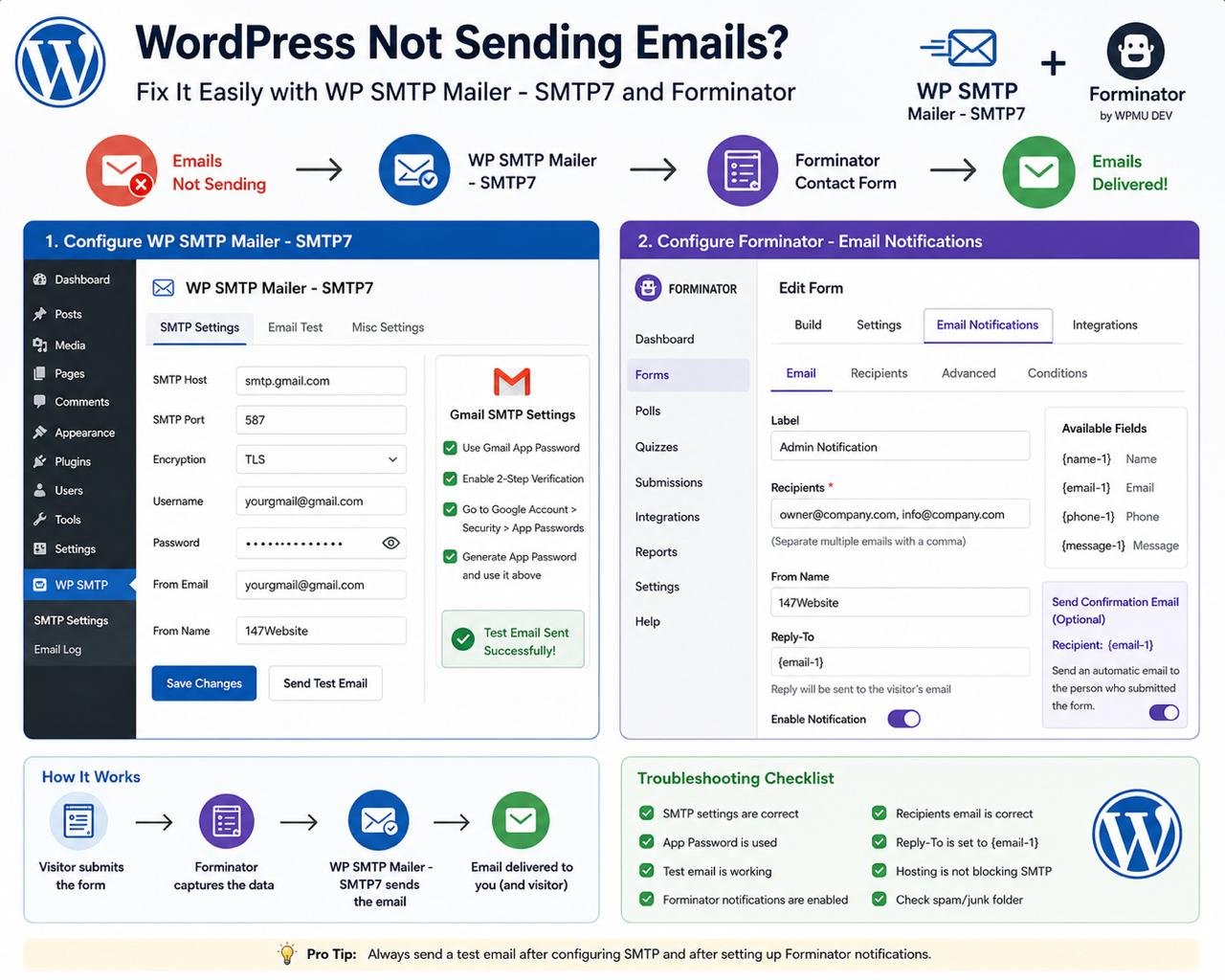
If your WordPress website is not sending emails, the issue is usually that WordPress is using the default PHP mail function, which many hosting providers block or limit.
The best solution is to configure SMTP. In this guide, we’ll use WP SMTP Mailer – SMTP7 to send emails through Gmail or Zoho Mail and Forminator to deliver contact form notifications reliably.
Step 1 — Install the SMTP Plugin
Install the following plugin:
| Plugin | Author | Purpose |
|---|---|---|
| WP SMTP Mailer – SMTP7 | Arshid | Sends all WordPress emails through SMTP instead of PHP Mail |
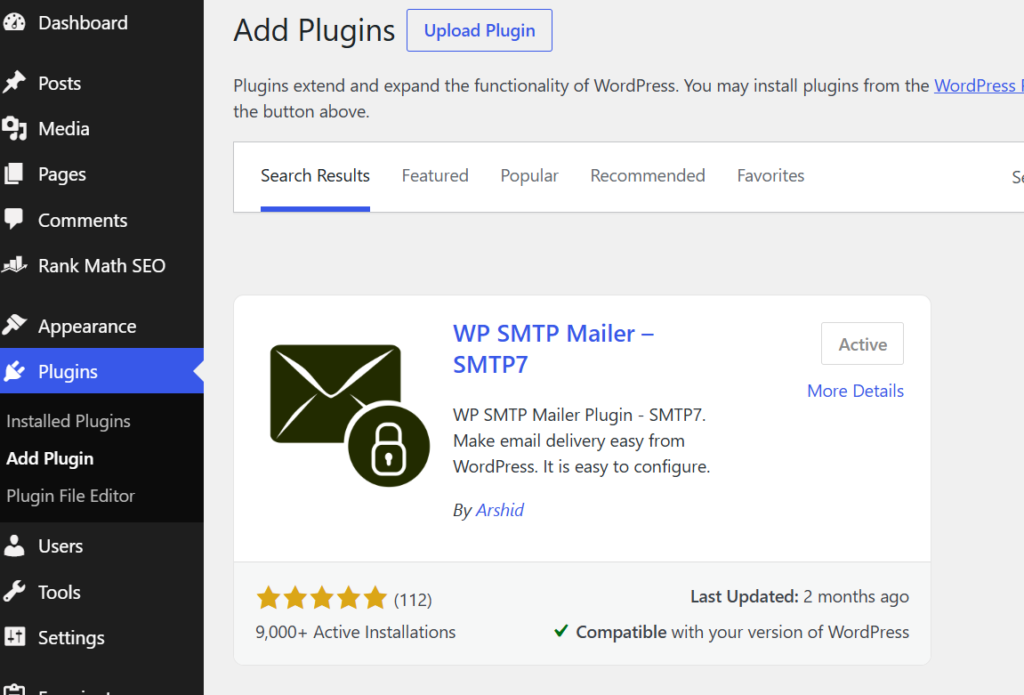
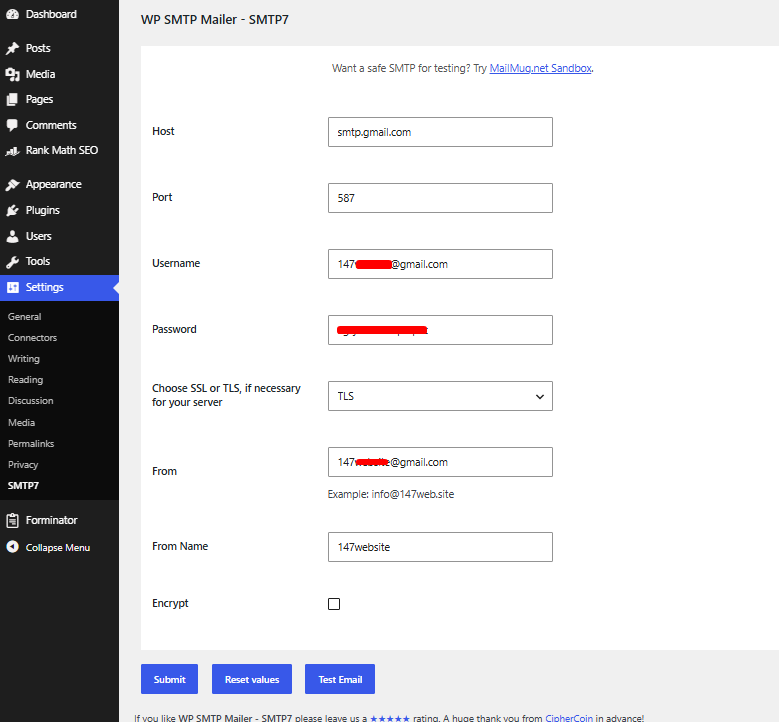
After activation, open the SMTP settings.
Gmail SMTP Settings
| Setting | Value |
|---|---|
| SMTP Host | smtp.gmail.com |
| SMTP Port | 587 |
| Encryption | TLS |
| Username | yourgmail@gmail.com |
| Password | Gmail App Password |
| From Email | yourgmail@gmail.com |
| From Name | 147Website |
Important: Do not use your regular Gmail password. Use a Gmail App Password instead.
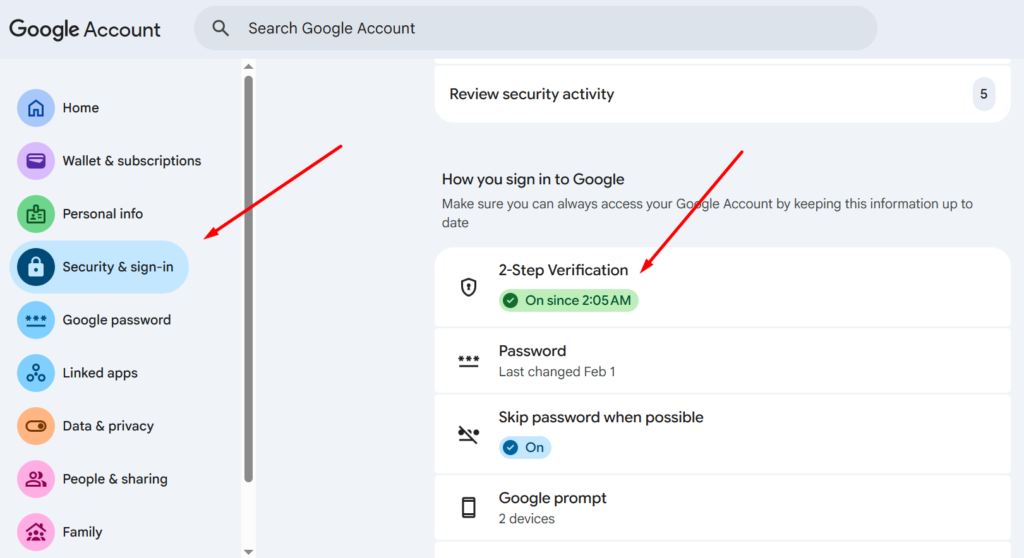
How to Create a Gmail App Password
Before using Gmail SMTP:
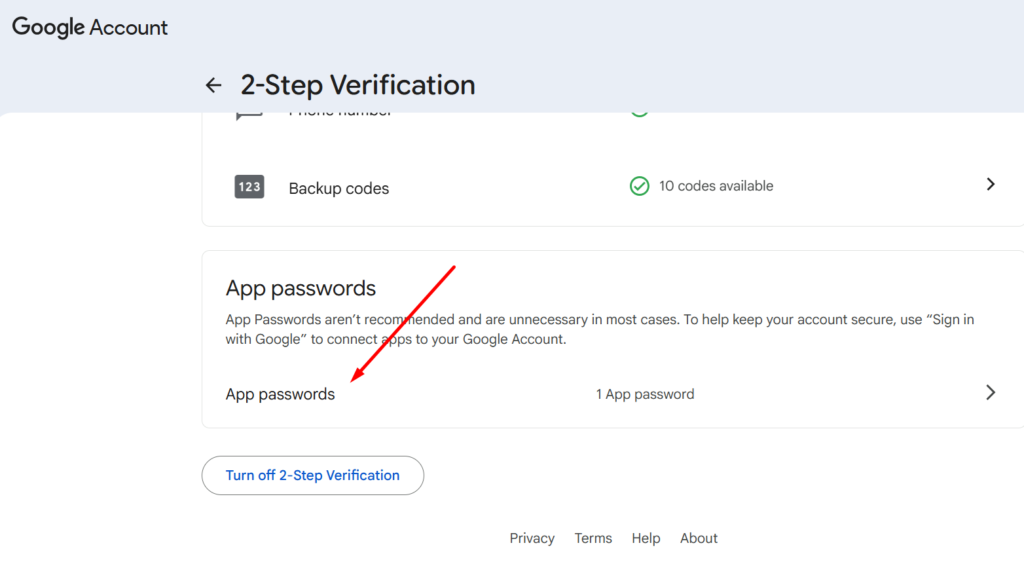
- Enable 2-Step Verification on your Google account.
- Open Google Account → Security.
- Click App Passwords.
- Create a new App Password.
- Copy the generated password.
- Paste it into the SMTP Password field.
After saving the settings, send a Test Email to verify everything is working.
Zoho SMTP Settings
If your client uses Zoho Mail, use these settings instead.
| Setting | Value |
|---|---|
| SMTP Host | smtp.zoho.com |
| SMTP Port | 587 |
| Encryption | TLS |
| Username | yourname@domain.com |
| Password | Zoho Email Password |
| From Email | yourname@domain.com |
| From Name | Business Name |
Step 2 — Install Forminator
Install the following plugin.
| Plugin | Author | Purpose |
|---|---|---|
| Forminator | WPMU DEV | Creates contact forms and sends email notifications |
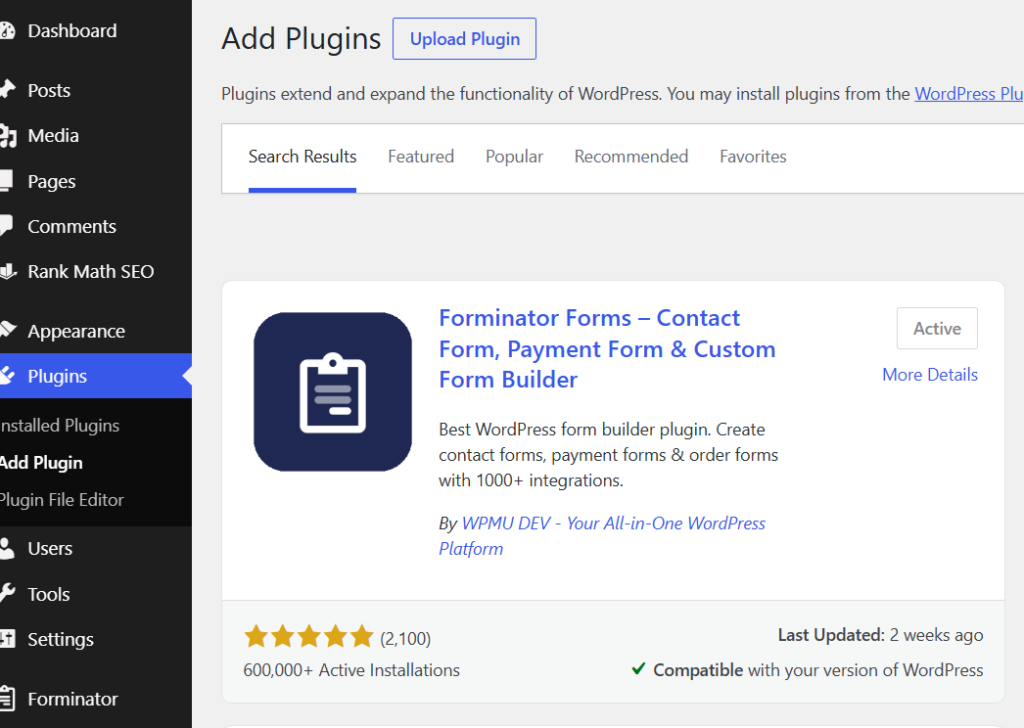
After installation:
Forms → Select Your Form → Email Notifications
Configure Admin Email Notification
| Setting | Value |
|---|---|
| Recipients | owner@company.com |
| Multiple Recipients | Separate with commas |
| From Name | 147Website or Business Name |
| Reply-To | Visitor’s Email Field |
Example:
| Field | Example |
|---|---|
| Recipient | owner@company.com |
| Reply-To | {email-1} |
Using the visitor’s email as the Reply-To makes it easy for the business owner to reply directly from their inbox.
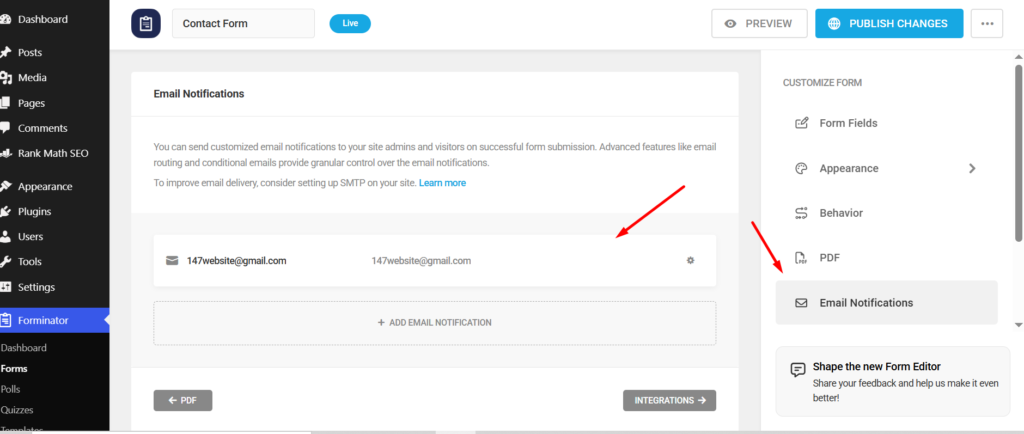
Send Confirmation Email to Visitors (Optional)
You can also send an automatic confirmation email after someone submits the form.
| Setting | Value |
|---|---|
| Recipient | {email-1} |
| Subject | We received your message |
Example email:
Hi {name-1},
Thank you for contacting us.
We’ve received your message and will get back to you as soon as possible.
Thank you,
147Website
Step 3 — Test the Contact Form
After everything is configured:
| Test | Expected Result |
|---|---|
| Send SMTP Test Email | Email is delivered successfully |
| Submit Contact Form | Admin receives notification |
| Visitor Confirmation | Visitor receives confirmation email (optional) |
| Reply Button | Replies go directly to the visitor’s email |
Troubleshooting Checklist
If emails are still not sending, check the following:
| ✔ | Item |
|---|---|
| ✅ | SMTP plugin installed correctly |
| ✅ | SMTP Host is correct |
| ✅ | Port is set to 587 |
| ✅ | Encryption is TLS |
| ✅ | Username matches the From Email |
| ✅ | App Password is correct |
| ✅ | SMTP Test Email works |
| ✅ | Forminator Email Notifications are enabled |
| ✅ | Recipient email address is correct |
| ✅ | Hosting provider is not blocking outgoing SMTP |
Recommended Setup Order
| Step | Action |
|---|---|
| 1 | Install WP SMTP Mailer – SMTP7 |
| 2 | Configure Gmail or Zoho SMTP |
| 3 | Send a Test Email |
| 4 | Install Forminator |
| 5 | Configure Email Notifications |
| 6 | Submit a test form |
| 7 | Verify both SMTP and contact form emails are working |
Final Thoughts
A properly configured SMTP service greatly improves email deliverability compared to WordPress’s default PHP mail function. By using WP SMTP Mailer – SMTP7 with Gmail or Zoho Mail, and configuring Forminator email notifications correctly, you can ensure contact form submissions, password reset emails, and other WordPress notifications are delivered reliably. Always perform a test after setup to confirm everything is working before launching the website.
Still need help? Contact me.